Manual
•November, 2021
Weekly report
Explanation of everything surrounding the weekly report and how to use the information you get from it.

Explanation of report format
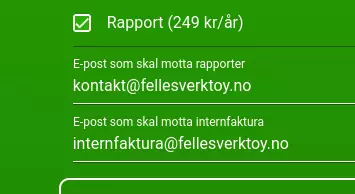
Turn on the Report module, and enter the email(s) in field 1 «Email to receive reports». You can enter multiple emails separated by commas if you want.
Changes from previous version
Version 2 changes the export from a single CSV file to an Excel workbook (with several tabs) plus separate CSV files, one per data type, and adds a rental cost calculation to every tab.
As before, later versions will only add new fields at the end - column order and headers already in use are not changed. Version 2 does introduce a new file structure though (a workbook with several tabs/CSVs instead of one CSV), so tooling built to read version 1 needs to be updated for version 2.
ERRATA/corrections to this document describing version 2:
- None yet.
What's included
The workbook (and matching CSV files) has one tab/file per data type:
- Event log - take, give, place and unplace events
- Stock - consumption and restocking of consumable tools
- Distributed items - movement of shared/pooled stock between users and warehouses
- Individual items - take/give and place/unplace history for single-instance tools
Each tab/file includes a rental cost column: rental price multiplied by the time or quantity involved, depending on tool type.
Localization
Text, dates and stock units (for example «pcs») are translated to your company's language, instead of always showing the raw value.
Sending
Reports are sent for all companies at 08:00 every Monday «Oslo time». If something goes wrong and we have to fix the report function, the next report will include events from the time the previous report was sent. This means you will usually get weekly reports with what has happened from Monday to Monday 08:00. Approximately. Depending on server load, reporting may start slightly before or after 08:00:00.
The first time you activate the report module, you automatically get a report from the last 2 weeks. You can contact us if you want a report from a different time.
Opening
The workbook opens directly in Excel or other spreadsheet software. The CSV files are just plain text, and you can open them with a spreadsheet too.
Time limitation
We cannot deliver logs from before January 1, 1970 00:00:00 UTC and not from the future either (should work fine for all our customers). The year 2038 problem has been accounted for. We will have a problem at the turn of the year 9999/10000 CE, but will update the app well in advance.
Data sources
Most fields in the log are stored «as they were at the time». For example, the log shows tool names as they were at the time the event occurred. Therefore, the same tool may have different names throughout the log.
Some fields are fetched at export time, so the value may have been different at the time of the event:
- Employee numbers
- Rental price
These are typically fields that are not updated very often, but if you have changed them during the week, the value at export time (which is most likely Monday 08:00) will be shown.
Some fields are calculated at export time, such as date fields, «days/hours/minutes/seconds out», quantity in stock, and rental cost.
Required settings
For the export to work you must:
- check the box for «Report» under Company settings
- fill in «Email to receive reports» under Company settings
- you can enter multiple email addresses separated by commas if you want to send to several.
CSV format
The attached CSV files follow the same standard CSV format as before:
- Character set UTF-8
- Field delimiter is comma ,
- Line delimiter is LF (\n , 0x0a)
- Decimal separator is period .
- Timezone is Europe/Oslo and takes daylight saving time into account.
- Date format is «YYYY-MM-DD HH:MM:SS», for example «2026-07-13 08:15:01» for July 13, 2026 at 08:15:01 Oslo time
- Fields containing double quotes or commas are enclosed in double quotes, with internal quotes doubled, following standard CSV escaping
How to import reports into spreadsheets
If you use Libreoffice, Openoffice, Google Sheets or Numbers, you can simply open the CSV file and select UTF-8, comma separated.
Excel is a little different, because it doesn't ask for filter settings when you open CSV, for some reason.
So to open the CSV file in Excel you need to:
- Open a new spreadsheet
- Go to Data → Get External Data → From Text
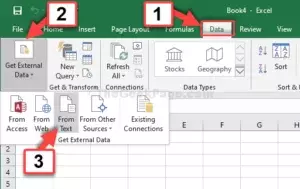
- Select the CSV file
- Select encoding UTF8
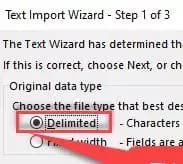
- Select separated with characters (not fixed length)
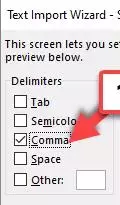
- Select Comma as the only field separator (and '' for text; it is usually set there by default)
- Press Next / Done a couple of times
Now you can do regular spreadsheet things with the information
← Back to all manuals
Last updated: September 04, 2024